Official App Store listing One-time purchase

Shadowrocket Setup Guide & User Manual

A rule-based proxy client for iOS / iPadOS, purchased through the official App Store as a one-time purchase. This manual covers importing, configuring, and verifying your existing connection details.

  • Shadowsocks
  • VMess
  • VLESS
  • Trojan
  • Hysteria2
  • WireGuard
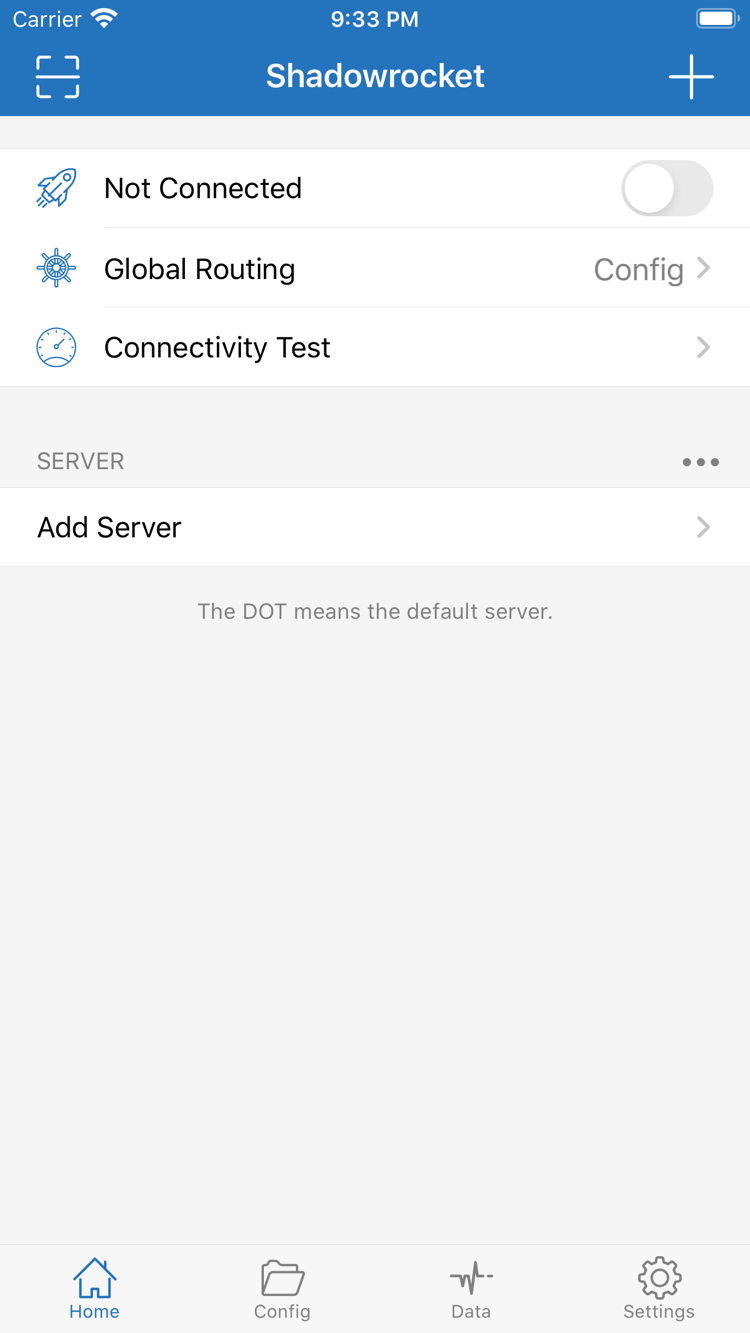
Official Shadowrocket Home screen

The image above is the official Home screen. Get Shadowrocket from the App Store. This manual assumes you already have your own subscription or server details; verify your configuration and routing rules before connecting.

Rule / Config / Settings

Shadowrocket Features & Where to Find Them

Keep connection details, routing mode, and configuration files distinct. Server entries determine where a connection goes; Global Routing determines how requests are handled; rules in Config determine which targets use which policy. Check each separately—a single latency test cannot verify them all.

Rule

Match rules by destination

Rule-based routing lets you apply different policies to different destinations. In Home, set Global Routing to Config, then open Config to check which file is active and review its Rule entries. Rules are generally evaluated from top to bottom, so place specific domains before broader matches and use FINAL at the end for remaining requests. DOMAIN-SUFFIX matches a domain and its subdomains, DIRECT bypasses the proxy, and PROXY applies the proxy policy. After saving, revisit the destination and check the connection log to confirm the expected rule matched.

[Rule]
DOMAIN-SUFFIX,example.com,PROXY
FINAL,DIRECT

App Store

iPhone & iPad How to Get the App

Shadowrocket is available only through the App Store. Before purchasing, check the product page for device compatibility, system requirements, and purchase eligibility. The App Store page is the source of truth for these details.

iPhone

Purchase and install Shadowrocket from the App Store. When you connect for the first time, follow the system prompts to add a VPN configuration. System authorization establishes the connection; importing server details is a separate step. After authorizing, select one of your own working connections and verify access.

Before reinstalling, consider saving your current configuration and routing mode. Restoring a purchase recovers the app; it does not restore server entries, subscription URLs, or local configuration files. Check the App Store page for system requirements.

View instructions

iPad

Use the Apple ID associated with your purchase to find Shadowrocket in your purchased items, then check the acquisition status on its product page. Whether a purchase can be used on both iPhone and iPad depends on the App Store listing. A connection working on another device does not confirm that this device is configured.

After installation, check Home, Config, and Settings on this device. Even if a file arrives through iCloud, confirm which configuration is enabled, which server is selected, and whether VPN authorization is complete. The devices may be using different networks.

View instructions

Shadowrocket is also available from the same App Store on Mac and Apple TV. Check the compatibility details on the store page for system requirements and purchase eligibility.

Home → Global Routing → Connectivity Test

First connection Three checks

You’ll need your own subscription or server details. Installing the app prepares the client, but you still need to add connection details, choose a routing mode, and verify access—in that order. For initial setup, keep the defaults and enter only the fields specified in your connection details.

01 / Add Server

Add a server or subscription

In Home, open Add Server. To add a server manually, choose Type first, then enter Host, Port, and authentication details. To import a subscription, choose Subscribe and enter your own URL. You can scan connection details with Scan QR Code, but check the protocol Type and key fields after scanning.

After saving, return to Home and check that the entry appears in the expected SERVER group. Select the entry you want to test. An imported subscription does not mean the connection works, and an entry name alone cannot confirm that its settings are correct.

02 / Global Routing

Choose the mode that fits your use case

Choose Config for rule-based routing, Proxy to route through the proxy, or Direct to connect directly. To route traffic by domain, first confirm which file is enabled in Config, then check that Rule includes the destination and a FINAL policy at the end.

When troubleshooting a website, compare results across modes if needed, then restore your preferred mode when testing is complete. Server selection and Global Routing are separate settings; changing the connection does not automatically change the rules file.

03 / Connect & Verify

Turn on the connection and verify a request

Turn on the switch at the top of Home. The first time, follow the system prompts to authorize the VPN configuration. Then run Connectivity Test and visit the destination you need to check. An enabled connection switch only indicates that the client is handling the connection; verify the result with an actual request.

If a test fails, check the current network and selected entry first, then verify the protocol settings and routing mode. If a site is reachable but traffic is taking the wrong route, check which rule matched instead of repeatedly importing the same subscription.

Read the full tutorial →

Developer / Artwork / App ID

Verify the official listing & Understand the purchase

Shadowrocket Official Site & Manual is the official site and manual for Shadowrocket. Use the App Store product page to verify purchase details and the in-app interface to find settings. Check the price, system requirements, and purchase eligibility again when you buy.

  • Developer: Shadow Launch Technology Limited
  • App ID: 932747118
  • One-time purchase

Verify the developer, official app icon, and App ID

On the product page, check the app name, Shadowrocket, and the developer, Shadow Launch Technology Limited. The app icon should match the official icon in this site’s header. The App ID in the product page URL is 932747118. Check the name, icon, and developer together; do not rely on the name shown in search results alone.

Search results may show apps with similar names or icons. Open the full product page to check its details rather than relying on the results list. The App Store button on this site links directly to the product page. If the current storefront does not show your purchase status, check the account and storefront in use in the App Store, then follow the store’s instructions.

A product page that will not load and an app that has not been purchased are different issues. For the former, check App Store access and storefront availability; for the latter, check your account’s purchase history. Do not rely on cached prices in your browser or screenshots to determine current eligibility, and do not confuse an account used for another service with your App Store purchase account.

App purchase ≠ server access plan

Shadowrocket is a closed-source commercial app sold as a one-time purchase. The US price reference is $2.99; other storefronts show local currency. The price shown on the App Store page before payment is the current price. The purchase covers use of the client, not access to servers or a guarantee of connection quality.

App purchase ≠ server access plan. After purchasing, import your own existing subscription or server details to provide the parameters needed for the corresponding connection. This site does not provide, sell, or recommend servers or subscriptions. This manual covers entering existing details, choosing a routing mode, checking rules, and troubleshooting connection issues.

Subscription updates and app updates are different. The former rereads connection details from an existing subscription URL; the latter are client updates managed by the App Store. They affect different things. When troubleshooting, first identify what changed, then decide whether to check server settings or app configuration.

Purchase history and moving to a new device

When changing devices or reinstalling, sign in to the App Store with the Apple ID used for the purchase and find Shadowrocket in your purchased items. Compare the acquisition status on the product page with your account’s purchase history. If you are prompted to pay again, check the account and storefront before purchasing again.

Check the App Store page for purchase eligibility on iPhone and iPad, Family Sharing terms, and compatibility with other devices. After restoring the app, you still need to restore the connection details and configuration files required on this device. Purchase history does not store server passwords or confirm that a subscription is still active.

Before migrating, decide which configurations to keep and check the relevant iCloud settings. After migration, check the entries in Home, the active file in Config, and On Demand in Settings. In particular, distinguish between a file being present and being enabled, then test actual access.

How to restore a past purchase →

System requirements, updates, and App Store storefronts

Check the App Store page for system requirements. Before installing, review the compatibility section to confirm that your device is supported; do not assume that because the app installs on another device, it will work on yours. If you see a system prompt, check the requirements in the store’s instructions before changing server settings.

Update the client through the App Store. You can review automatic update options in the system’s store settings. If the interface changes after an update, look for the relevant options under Home, Config, Settings, and other feature names, then check the active configuration and selected server. There is no need to recreate all your entries just because their location has changed.

Your storefront determines which product details, currency, and payment terms are shown. Check prices in the storefront you actually use, and review the compatibility and in-app purchases sections before buying. For pricing and purchase restoration, see the purchase guide; for connection issues, follow the troubleshooting steps in the tutorial.

See pricing and purchase details →
Quick Checks

Frequently asked questions What to check first

Start by identifying where the problem occurs: check the App Store for purchase and installation issues, Home for import results, Global Routing and Config for routing, and test results and protocol settings for connection failures.

The switch is on. Why do I still need to verify access?

The switch status does not confirm that the server is reachable or that the expected rule matched. First run Connectivity Test for the selected server, then make an actual request and check the current Global Routing mode. If the test succeeds but a particular destination fails, determine whether the issue is with the destination itself or the route taken by the request. Keep comparison results by changing settings one at a time.

See how to verify a connection →
Why do I need to select a server after importing a subscription?

Importing a subscription only reads connection entries. After saving, check the SERVER group, any change in the number of entries, and which entry is selected before testing. An update may change or remove the entry you previously selected, so check your selection again. Subscription URLs and configuration files serve different purposes: updating server details does not configure rules to match your needs.

How to import and select an entry →
Why isn’t a destination routed as expected after saving the rules?

First confirm that Global Routing is set to Config and that the edited file is active. Then check the rule order: a broader condition placed first may match the destination before a more specific rule. DOMAIN and DOMAIN-SUFFIX match different scopes; check FINAL as well. Save, make a new request, and use the connection log to check the result instead of only seeing whether the page loads.

Learn how rule matching works →
What information should I include when asking for help?

Note the current network, protocol Type, Global Routing mode, test method, and exact steps that fail. Specify whether the issue is importing, connecting, or accessing a destination. Before sharing screenshots or diagnostics, remove Password, subscription credentials, and other authentication details. Compare results using the same network, server, and destination; this is usually more useful than reinstalling repeatedly.

See the troubleshooting steps →

Official Manual / Articles

Rules & Connections Featured Guides

Start with the guide that matches your issue. The rule syntax article explains matching scope, the beginner FAQ points out commonly used options, and the timeout troubleshooting guide organizes checks for tests, settings, and system time. For protocol fields and design trade-offs, see the protocol reference.

Download Shadowrocket